Image to PDF: Photos, Scans and HEIC in One Document
Image to PDF turns a pile of mixed pictures into a single, ordered PDF file. The conversion happens on your own device, so receipts, IDs and scans never leave it.
Converted on this device. Your files are never uploaded.
How it works
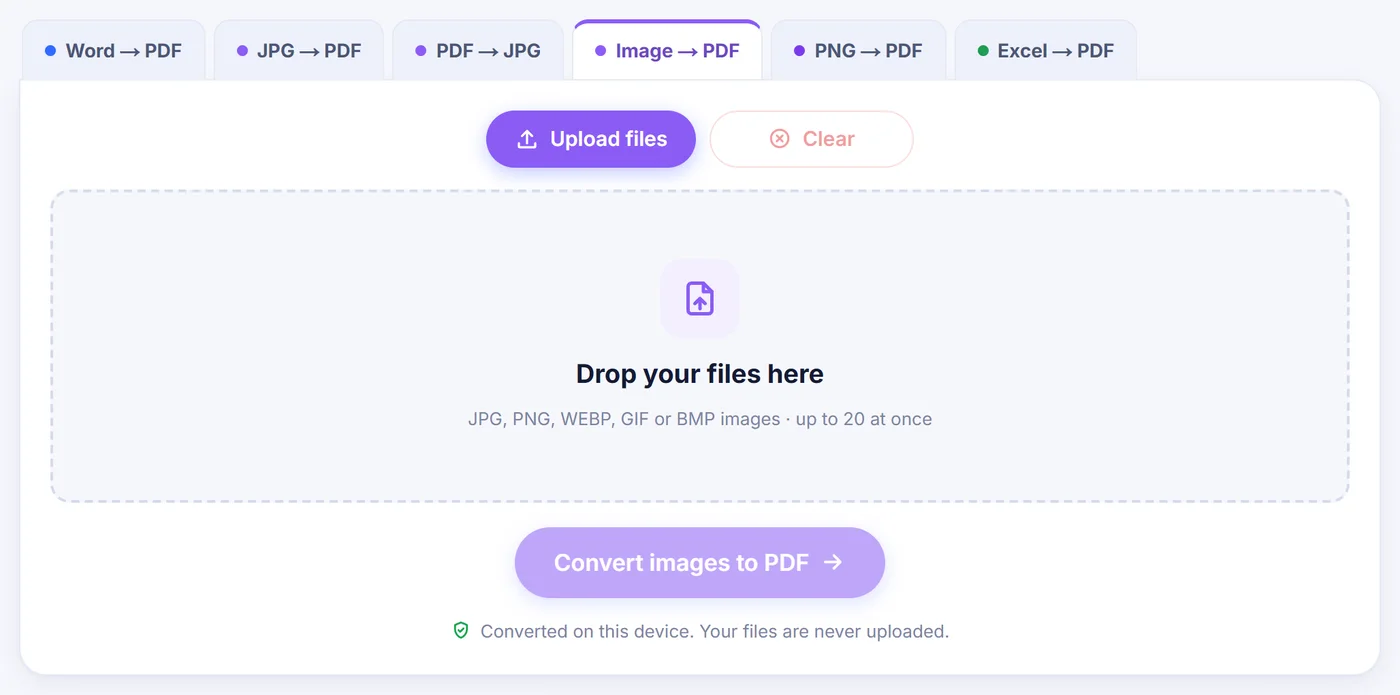
Drop in your pictures
Select or drag up to 20 images at once; iPhone HEIC, TIFF, WEBP, AVIF, GIF, BMP and SVG are accepted next to ordinary JPG and PNG.
Arrange the pages
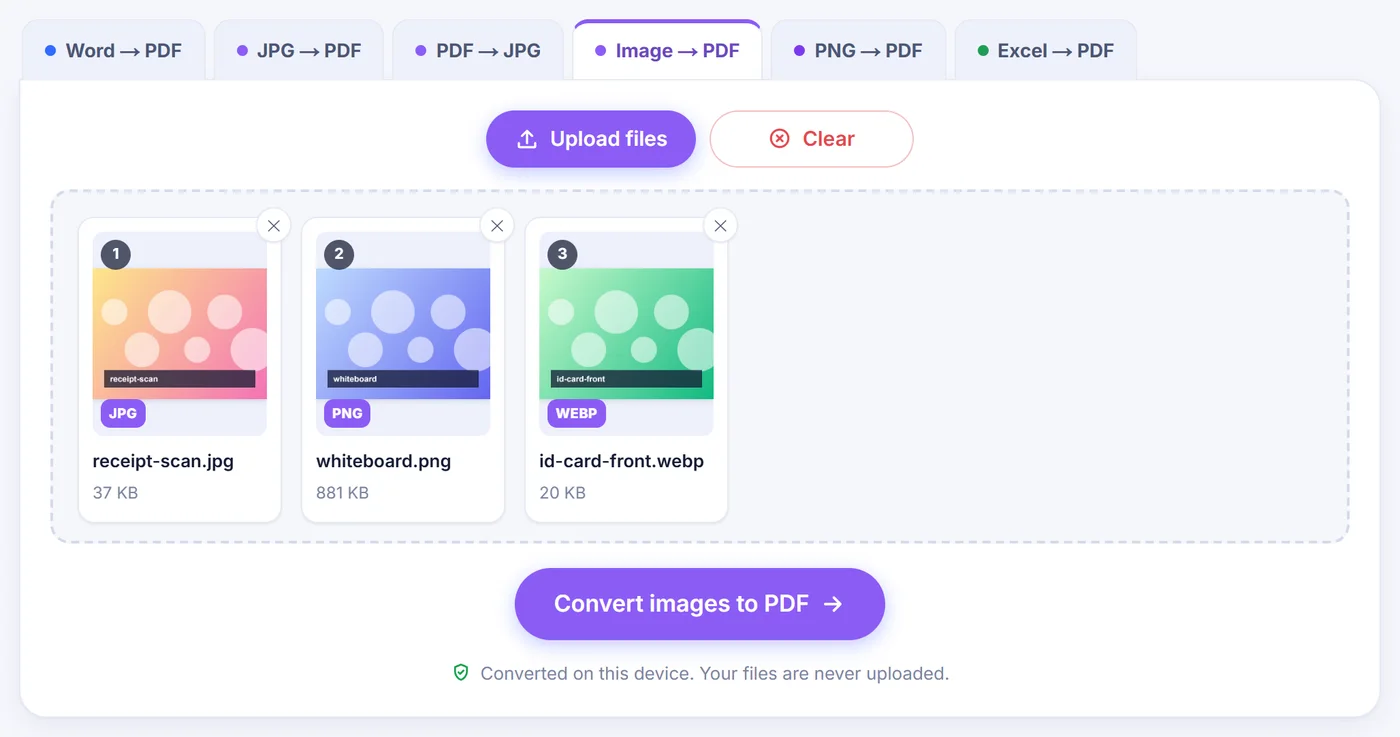
Each picture becomes one page card that you can drag, rotate, duplicate or delete, then pick Fit to image, A4 or Letter and a margin.
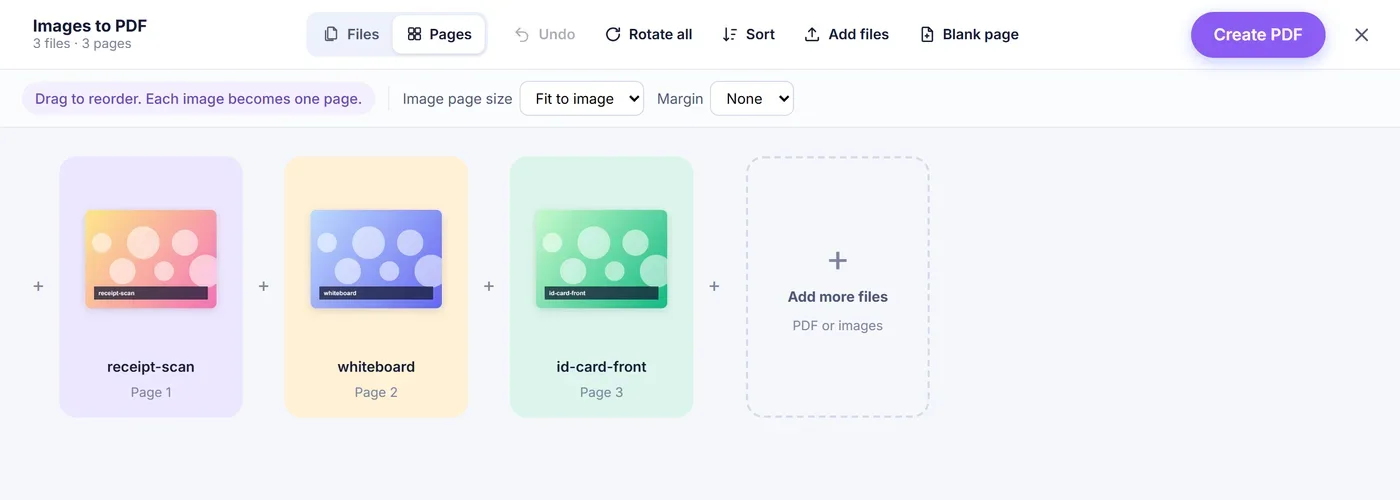
Press Create PDF
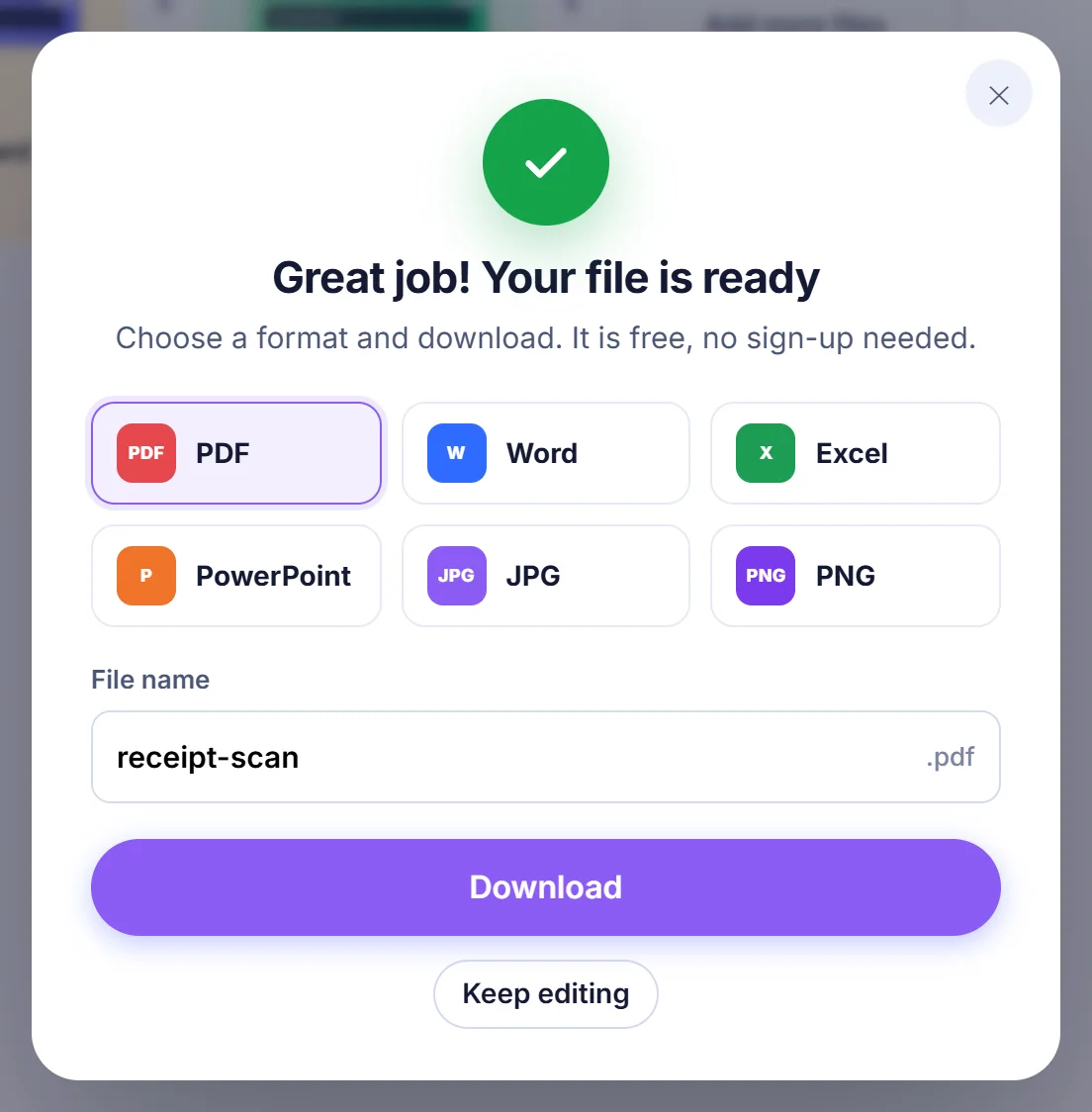
The finished document is assembled in your browser and named after the first picture you added.
Why people turn an image into a PDF
A folder of photos is awkward to send. The recipient has to open each file, guess the order and hope nothing is missing. A single PDF fixes that: one attachment, pages in the sequence you chose, and a format that every phone, laptop and office printer opens without fuss. Typical cases are a rental application that wants "all documents in one PDF", a stack of receipts for an expense report, a handwritten assignment photographed page by page, or a set of scanned contracts that arrived as TIFF files from an office copier.
The tricky part is rarely the PDF itself. It is the mix of source formats. Your phone saves HEIC, a website gave you WEBP, the scanner produced a multi-page TIFF and a colleague sent a PNG screenshot. This page was built to swallow all of them in one go.
How to convert images to PDF on this page
- Add the files. Click the main button or drag pictures onto the page. You can add up to 20 at a time, and the Add more files card inside the editor lets you bring in more later, including existing PDF documents whose pages are merged in.
- Wait a moment for unusual formats. JPG and PNG go straight through. Anything else (HEIC, TIFF, WEBP, AVIF, GIF, BMP, SVG), plus any phone photo stored sideways, is prepared first, and a progress bar names each file as it is processed. You can cancel at any time.
- Put the pages in order. Drag the thumbnails, or use the small arrows on each card. The Sort menu offers name A to Z, Z to A, or a straight reversal, which helps when your files are numbered. Rotate, duplicate or remove a page, insert a blank sheet, open a larger preview, and press Undo (or Ctrl+Z) if you change your mind.
- Choose the page format. Fit to image makes every page the shape of its picture. A4 and Letter place each image in the centre of a standard sheet, scaled to fit, and a wide picture automatically gets a landscape sheet. The margin can be None, Small (about 7 mm) or Large (about 14 mm).
- Create the PDF. The document is built on your device and named after the first picture you added (reordering pages does not change this), so receipt-march.jpg leads to receipt-march.pdf.
Which picture formats are accepted
Photos from phones and cameras
JPG files are embedded exactly as they are, without being compressed a second time. Many phones store a portrait shot sideways and add a small orientation flag; PDF readers ignore that flag, so the tool redraws such photos upright before placing them (re-saving at 95% JPEG quality). iPhone and iPad HEIC or HEIF pictures are decoded by the browser itself when it can (recent Safari does); otherwise a decoder script is loaded from this site the first time you need it and runs locally. Decoded HEIC photos are stored as 92% quality JPEG.
Scans and TIFF files
TIFF support goes well beyond the basics. A multi-page TIFF is split so that every page of it becomes its own PDF page. Black-and-white fax scans (CCITT Group 3 and Group 4) are decoded, and so are uncompressed, LZW, Deflate, PackBits and JPEG-compressed TIFFs in greyscale, colour, palette and CMYK. A few rare types are outside the built-in reader: BigTIFF, the outdated "old-style JPEG" compression and the floating-point predictor. Safari can sometimes open those natively; in other browsers you get a message with the reason. If a later page inside a long TIFF is damaged, that page is skipped and the rest still arrive.
Web graphics and drawings
WEBP, AVIF, BMP and GIF are all welcome. An animated GIF contributes only its first frame, and you are told so. SVG drawings are rendered sharply with the longest side at 2400 pixels before they go into the document. Photoshop PSD files are not supported; export them to PNG or JPG first.
What happens to quality and transparency
For anything that is not already JPG or PNG, the tool looks at the pixels and picks the better container. Pictures with transparent areas, black-and-white scans, logos and diagrams with few colours become lossless PNG, which keeps text edges crisp. Ordinary photos and greyscale or colour scans become JPEG at 92% quality, which keeps the PDF a sensible size without visible damage. Transparent areas stay transparent and show the white page behind them. PNG files you add yourself stay lossless.
One honest limit: the result is a document made of pictures. There is no text recognition, so you cannot search or copy words from a photographed page. If you need that, run the finished PDF through an OCR program afterwards.
Tips for a tidy result
- Number your files before adding them (scan-1, scan-2 and so on). The name sort reads numbers as numbers, so scan-10 lands after scan-9 and not after scan-1, even without leading zeros.
- For anything that will be printed or uploaded to an official portal, pick A4 (or Letter in North America) with a small margin. For a document read only on screen, Fit to image avoids white borders.
- Crop photos of paper before converting. A tight crop makes the page look like a real scan and shrinks the file.
- Use a blank page as a divider between sections, for example between invoices and bank statements. It is added at the end; drag it to where it belongs.
Common problems and how to solve them
A file was rejected. A window lists every file that could not be read and the reason, such as an empty file or a format that is not an image. You can continue with the remaining pictures or pick others.
The phone ran out of memory. Huge images that need converting are scaled down to what the browser can safely draw (about 16.7 megapixels per image on iPhone and iPad, 50 megapixels elsewhere), and a message tells you which file was reduced. For very large scans, a computer gives more headroom.
A PDF you added is locked. Password-protected PDFs cannot be opened by the editor. Remove the password in your PDF reader, then add the file again.
The HEIC decoder did not load. Browsers without built-in HEIC support fetch it from this site. Check your connection, reload and try again.
Private by design
Everything described above runs in JavaScript inside the browser tab. Your pictures are read from your disk, converted and stitched together in memory, and the PDF is handed back to you as a download. They are not sent to any server, so there is nothing stored for us to delete later. Close the tab and the working copies disappear. There is no account, no email field and no watermark on the pages.
Frequently asked questions
How do I convert an image to PDF for free?
Add your pictures, arrange them in the editor and press Create PDF. It costs nothing, needs no registration and puts no watermark on the pages.
How do I combine multiple images into one PDF?
Yes. Every image you add becomes one page of the same document, and you decide the order by dragging or by sorting on file name.
How do I turn iPhone HEIC photos into a PDF?
Add the HEIC files like any other picture. Browsers that read HEIC themselves, such as recent Safari, use that; others load a decoder from this site once and convert the photos on your device.
Does each page of a multi-page TIFF get its own PDF page?
Yes. A multi-page TIFF is split automatically, including black-and-white fax scans, and the pages keep their original order.
Will converting images to PDF reduce quality?
JPG files go into the PDF unchanged and PNG stays lossless. Other formats are converted once, to lossless PNG for graphics and black-and-white scans or to 92% JPEG for photos, and sideways phone photos are re-saved upright at 95%.
Can I make A4 or Letter pages from my images?
Yes. Choose A4 or Letter and each picture is centred and scaled to the sheet, with landscape orientation used for wide images. A small or large margin is optional.
Are my images uploaded anywhere?
No. The conversion runs inside your browser and the files stay on your device; closing the tab removes everything.